
Getting Started
Get BRIDGEPORT running and manage your first server in under 5 minutes.
What You’ll Accomplish
Section titled “What You’ll Accomplish”By the end of this guide, you will have:
- A running BRIDGEPORT instance
- Your first environment created
- A server added and connected
- Your running Docker containers discovered as services
Prerequisites
Section titled “Prerequisites”- Docker installed on your machine (install Docker)
- A server to manage — either the same machine (via Docker socket) or a remote server with SSH access
Step 1: Start BRIDGEPORT
Section titled “Step 1: Start BRIDGEPORT”Run this single command to start BRIDGEPORT:
docker run -d \ --name bridgeport \ -p 3000:3000 \ -v bridgeport-data:/data \ -e MASTER_KEY=$(openssl rand -base64 32) \ -e JWT_SECRET=$(openssl rand -base64 32) \ -e ADMIN_EMAIL=admin@example.com \ -e ADMIN_PASSWORD=changeme123 \ ghcr.io/bridgeinpt/bridgeport:latestYou should see output like:
Unable to find image 'ghcr.io/bridgeinpt/bridgeport:latest' locallylatest: Pulling from bridgeinpt/bridgeport...Status: Downloaded newer image for ghcr.io/bridgeinpt/bridgeport:latesta1b2c3d4e5f6...Verify it’s running:
docker logs bridgeportExpected output:
=== BRIDGEPORT Startup ===Database path: /data/bridgeport.dbNo database found, will create freshApplying migrations......=== Starting BRIDGEPORT ===Server listening on 0.0.0.0:3000Open http://localhost:3000 in your browser.
This quick-start command is for trying BRIDGEPORT out. The MASTER_KEY and JWT_SECRET are generated inline and not saved anywhere. For production, see the Installation Guide.
Step 2: Log In
Section titled “Step 2: Log In”You’ll see the BRIDGEPORT login page. Enter the credentials you set in the docker run command:
- Email:
admin@example.com - Password:
changeme123
After logging in, you’ll land on an empty dashboard. Time to set things up.
Step 3: Create an Environment
Section titled “Step 3: Create an Environment”Environments are how BRIDGEPORT organizes your infrastructure. Think of them as logical groups — “production”, “staging”, “dev”, etc. Each environment has its own servers, services, secrets, and settings.
- Look at the sidebar on the left
- Click the environment selector dropdown at the top
- Click Create Environment
- Enter a name (e.g.,
production) and click Create
Your new environment is now active.
Step 4: Add Your First Server
Section titled “Step 4: Add Your First Server”This is where it gets interesting. How you add a server depends on where your containers are running.
flowchart TD
    Q["Where are your Docker containers?"]
    Q -->|Same machine as BRIDGEPORT| A["Docker Socket mode"]
    Q -->|A different server| B["SSH mode"]
    A --> A1["Mount the Docker socket<br/>(see below)"]
    B --> B1["Paste your SSH key<br/>in environment settings"]
If your containers run on the same machine as BRIDGEPORT, mount the Docker socket. First, stop and re-create the container:
docker stop bridgeport && docker rm bridgeportThen re-run with the socket mounted:
docker run -d \ --name bridgeport \ -p 3000:3000 \ -v bridgeport-data:/data \ -v /var/run/docker.sock:/var/run/docker.sock \ -e MASTER_KEY=$(openssl rand -base64 32) \ -e JWT_SECRET=$(openssl rand -base64 32) \ -e ADMIN_EMAIL=admin@example.com \ -e ADMIN_PASSWORD=changeme123 \ ghcr.io/bridgeinpt/bridgeport:latestFor remote servers, you’ll connect via SSH.
- Upload your SSH key: Go to Configuration > Environment Settings in the sidebar, then upload the SSH private key that has access to your server
- Add the server: Go to Servers in the sidebar and click Add Server
- Enter the details:
- Name: A friendly name (e.g.,
web-1) - Hostname: The server’s IP or domain (e.g.,
10.0.1.50)
- Name: A friendly name (e.g.,
- Test the connection: BRIDGEPORT will verify SSH connectivity
Once connected, the server should appear with a healthy status.
Step 5: Discover Your Containers
Section titled “Step 5: Discover Your Containers”Now for the fun part — seeing your running containers.
- Go to Servers in the sidebar
- Find your server and click Discover
- BRIDGEPORT scans the server for running Docker containers
- Each container appears as a Service with its image, status, and ports
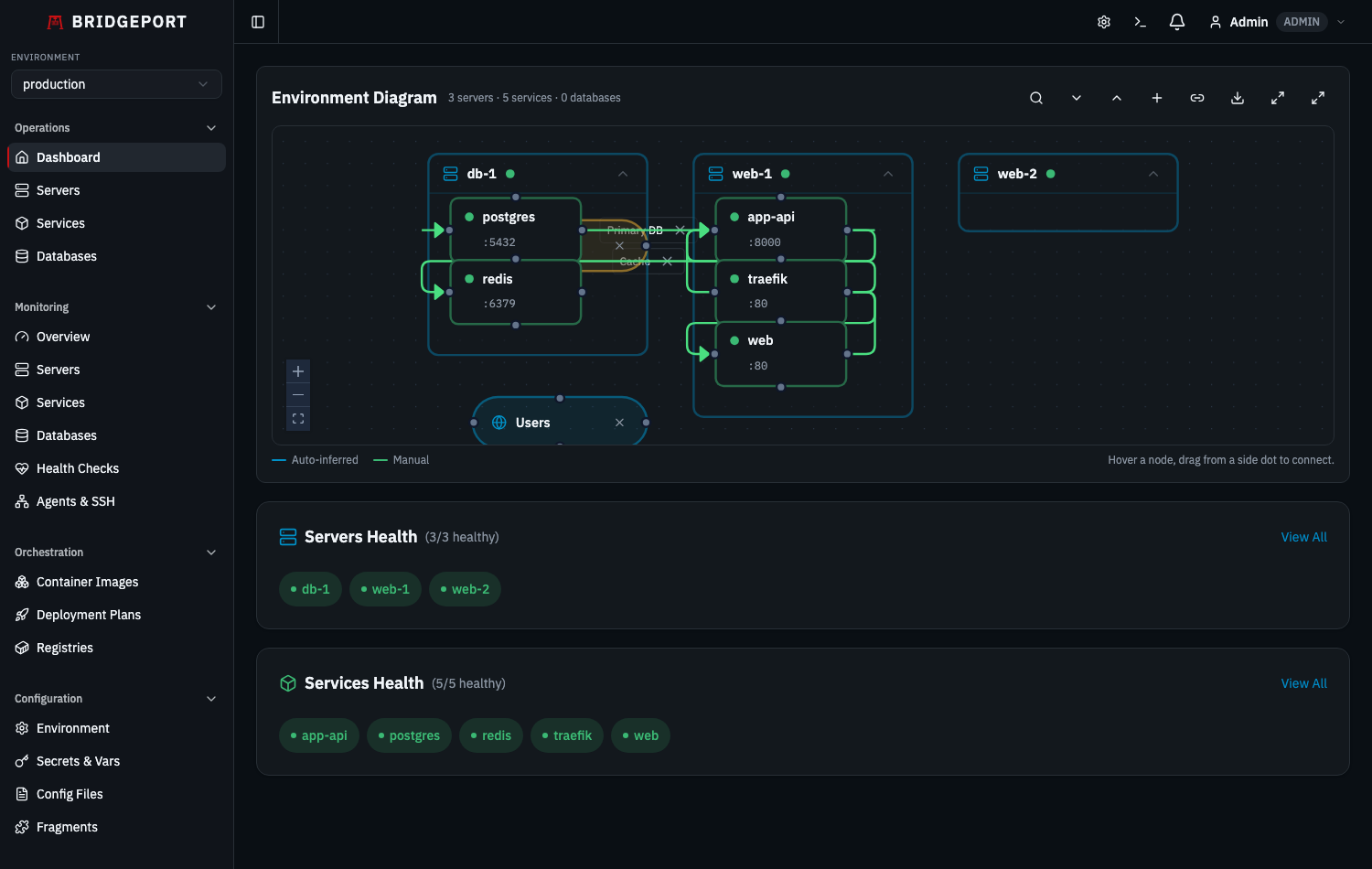
Navigate to Services in the sidebar to see everything that was discovered. Each service is linked to a Container Image, which BRIDGEPORT uses to track tags, check for updates, and manage deployments.
Step 6: Deploy an Update (Optional)
Section titled “Step 6: Deploy an Update (Optional)”Ready to see BRIDGEPORT in action? Try deploying a new tag to one of your services.
- Go to Services and click on a service
- In the Deploy card, enter a new image tag (e.g.,
v1.2.0) - Click Deploy
- Watch the deployment log stream in real-time:
- Image pulled
- Container stopped
- New container started
- Health check passed
The deployment is recorded in the service’s Deployment History with full logs and timestamps.
What’s Next?
Section titled “What’s Next?”You’ve got BRIDGEPORT running and managing your first server. Here’s where to go from here:
| I want to… | Read this |
|---|---|
| Set up server and service monitoring | Monitoring Guide |
| Get notified about failures and deployments | Notifications Guide |
| Connect a container registry for update checks | Registries Guide |
| Schedule database backups | Databases Guide |
| Manage secrets and config files | Secrets Guide / Config Files Guide |
| Use the CLI for terminal workflows | CLI Reference |
| Drive BRIDGEPORT from an AI agent (Claude, Cursor) | MCP Server |
| Deploy BRIDGEPORT for production | Installation Guide |
| Understand how BRIDGEPORT is structured | Core Concepts |